
The Problem with Scattered Client Data
Most small businesses track customer information across multiple places: phone contacts, spreadsheets, email threads, sticky notes. When it’s time to send an invoice, you’re searching for the right address. When a client calls, you can’t quickly see what they owe or what work you’ve done for them.
Pronto Invoice consolidates everything about each client in a single profile—contact details, billing history, payment records, and notes—accessible from any device.
How Client Management Works
Every client in Pronto Invoice has a profile that stores their information and automatically tracks all activity. When you create an invoice or estimate, the client’s data populates automatically. When they pay, the balance updates instantly.
Creating a Client
Add a new client in seconds. Required fields are minimal:
- First name
- Last name
- Email address (unique per client)
Everything else is optional but available when you need it.
Client Profile Fields
| Field | Description |
|---|---|
| Personal Info | |
| First name | Client’s first name (required) |
| Last name | Client’s last name (required) |
| Client email address (required, unique) | |
| Phone number | Personal phone |
| Address | |
| Street | Address line 1 |
| Suite | Address line 2 (apartment, suite, unit) |
| City | City |
| State | State or province |
| Postal code | ZIP or postal code |
| Country | Country |
| Company Info | |
| Company name | Client’s business name |
| Job title | Client’s role |
| Company phone | Business phone number |
| Company website | Website URL |
| Tax Info | |
| Tax name | Legal business name for invoices |
| Tax number | Tax ID, EIN, or VAT number |
| Organization | |
| Status | Active, inactive, or custom status |
| Category | Enterprise, small business, or custom |
| Tags | Custom labels for filtering and organization |
| Note | General notes about the client |
What Gets Tracked Automatically
Pronto Invoice maintains running totals for each client without any manual work:
| Metric | What It Shows |
|---|---|
| Total invoices | Number of invoices created for this client |
| Total estimates | Number of estimates sent |
| Total payments | Sum of all payments received |
| Unpaid invoices | Number of invoices still awaiting payment |
| Outstanding balance | Total amount currently owed |
These numbers update automatically whenever you create an invoice, record a payment, or receive funds.
Client Notes
Add notes to any client profile to track important details. Notes are useful for:
- Site access codes or gate information
- Preferred contact methods
- Special billing instructions
- Job-specific details
Note Features
- Title – Optional heading for the note
- Details – Note content (up to 5,000 characters)
- Type – Private (internal only) or public
- Document link – Optionally attach a note to a specific invoice or estimate
Notes linked to documents display the document number for easy reference.
Client Detail View
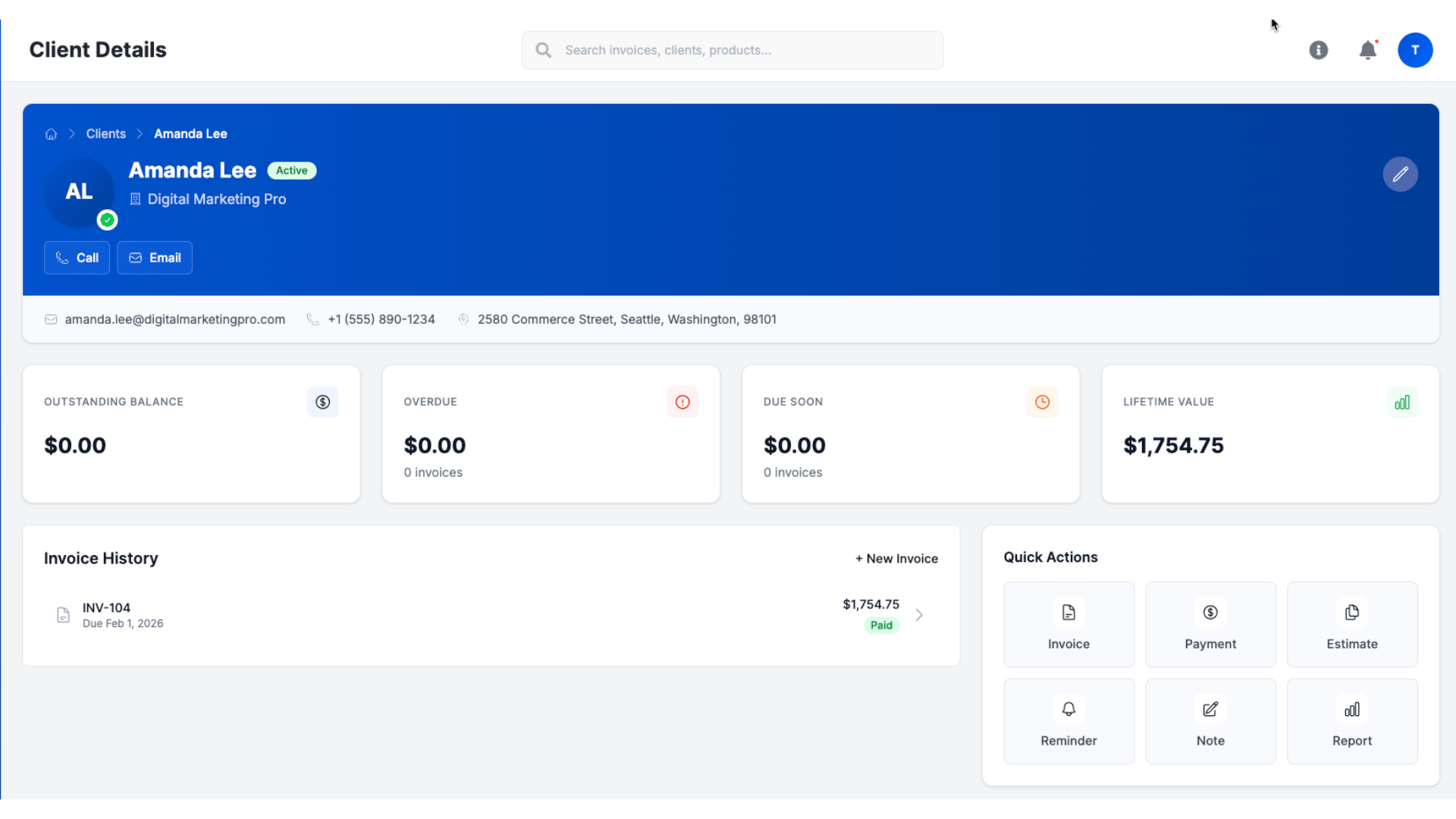
The detail view shows everything about a client in one place:
Recent Invoices
See the client’s invoice history with key details:
- Invoice number and status (draft, sent, paid, overdue)
- Total amount and amount paid
- Due date
- Project name
Recent Estimates
View estimates sent to this client:
- Estimate number and status (sent, accepted, declined, expired)
- Total amount
- Expiry date
- Project name
Financial Summary
At-a-glance view of the client’s account:
- Outstanding balance – Total currently owed
- Overdue amount – How much is past due and how many invoices
- Due soon – Upcoming payments expected
- Lifetime totals – Total invoiced, total paid, invoice count
Recent Activity
Timeline of interactions with the client:
- Invoices created and sent
- Payments received
- Status changes
Recent Payments
Payment history showing:
- Amount and date
- Payment method
- Which invoice was paid
Finding and Organizing Clients
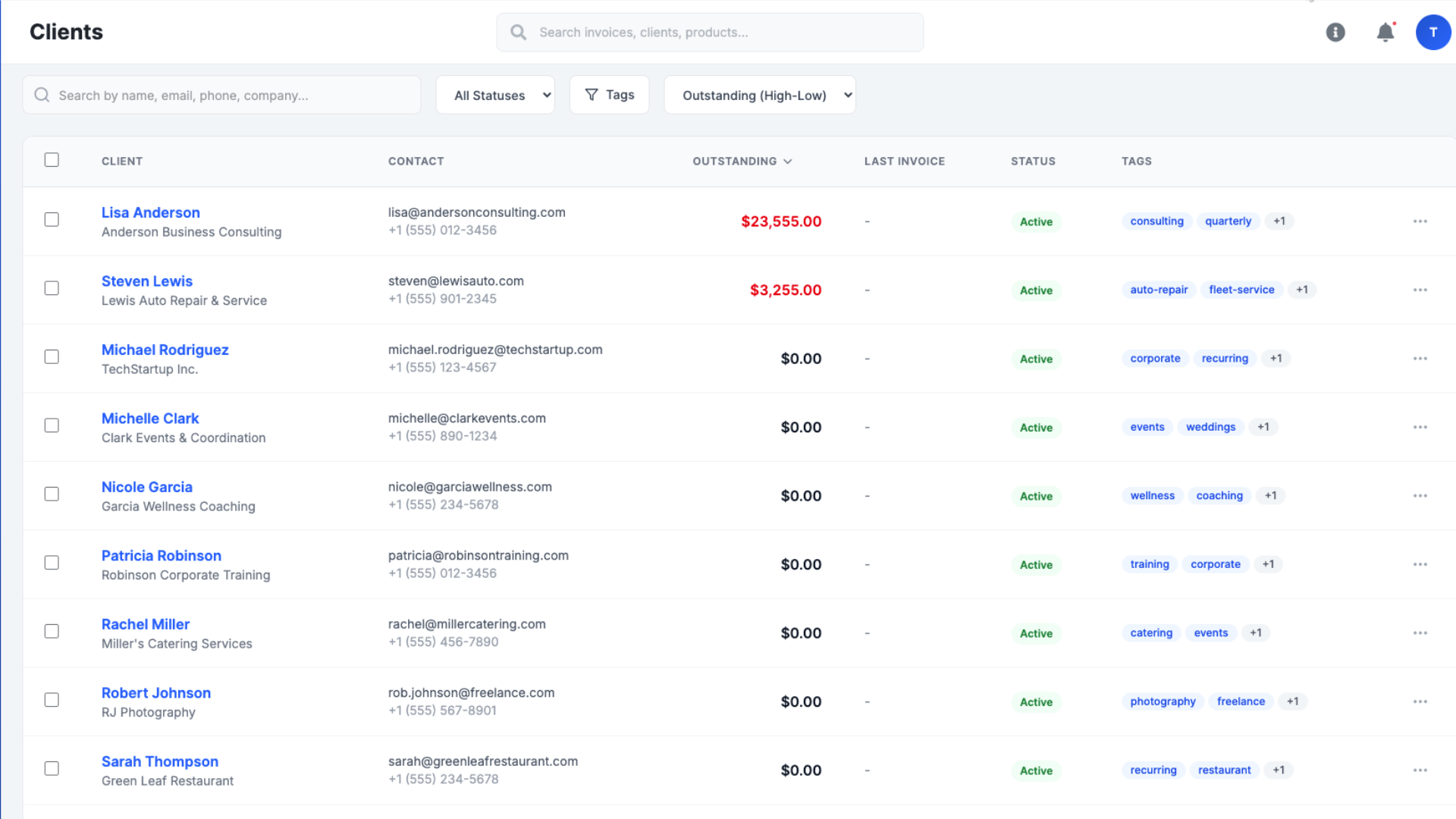
Client List
View all clients with pagination. Each list item shows:
- Client name
- Company name
- Status
- Outstanding balance
Search
Search clients by name, email, or company name. Results update as you type.
Tags and Categories
Organize clients with:
- Tags – Add multiple labels to any client (e.g., “VIP”, “recurring”, “contractor”)
- Categories – Classify clients by type (e.g., enterprise, small business)
- Status – Mark clients as active or inactive
Filter your client list by any combination of these.
Outstanding Invoices View
When recording a payment, you can see all unpaid invoices for a client:
- Sorted by due date (oldest first)
- Shows invoice number, amount, and balance due
- Lets you select which invoices the payment applies to
This makes payment allocation straightforward—see what’s owed, apply the payment, done.
Adding Clients During Invoice Creation
You don’t need to create clients ahead of time. During the invoice creation workflow (Step 1: Select Client), you can:
- Search existing clients
- Create a new client on the spot
- Import from your phone contacts
New clients created during invoicing are automatically saved to your client list for future use.
Editing and Deleting Clients
Editing
Update any client field at any time. Changes apply immediately but don’t affect existing invoices—those retain the information as it was when created.
Two update options:
- Full update – Replace all client information (requires name and email)
- Partial update – Change only specific fields
Deleting
Permanently remove a client when no longer needed. This action cannot be undone.
Note: Deleting a client does not delete their invoices or payment history. Those records remain for your accounting.
Who This Feature Is For
Contractors and Field Service
Track job site details, access codes, and property notes. See payment history before starting new work. Know immediately if a customer has outstanding invoices.
Freelancers
Maintain professional client records without a separate CRM. Track project history and total billings per client. Quickly see lifetime value of each customer relationship.
Small Business Owners
Manage customer relationships at scale. Use tags and categories to segment clients. Monitor outstanding balances and follow up on overdue accounts.