
Why Estimates Matter
Winning work starts with a clear, professional estimate. But most business owners face the same problems:
- Slow turnaround – Creating estimates on a laptop back at the office means delayed quotes and lost opportunities
- Re-entry work – Typing the same information again when converting to an invoice
- No tracking – Wondering if the client ever opened your estimate
- Unprofessional appearance – Handwritten quotes or plain text emails that don’t inspire confidence
Pronto Invoice solves all of these. Create estimates on-site in under 60 seconds, track their status, and convert accepted estimates to invoices with a single tap.
How Estimates Work
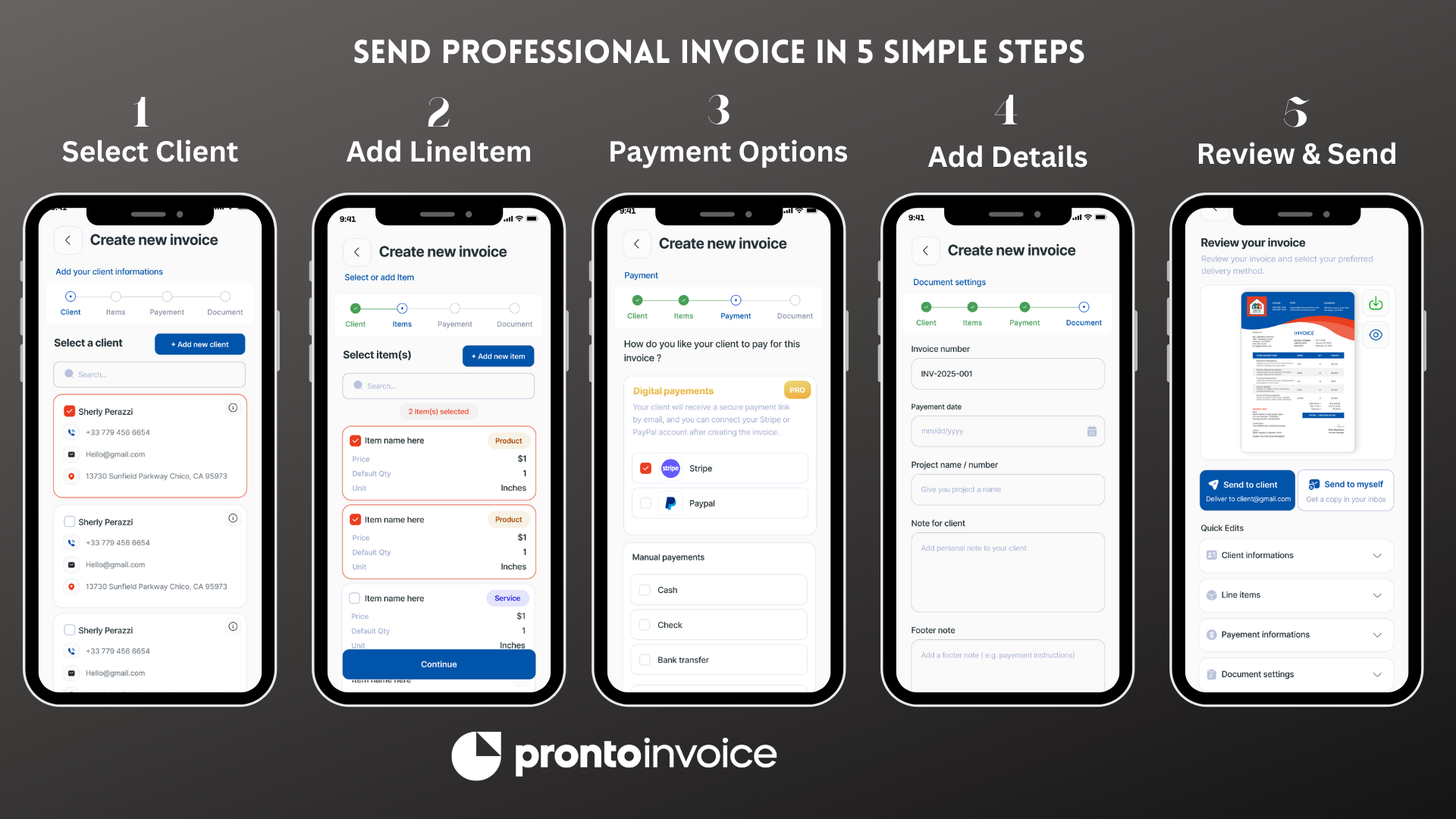
Estimates follow the same 5-step workflow as invoices. If you know how to create an invoice, you already know how to create an estimate.
Step 1: Select Client
Choose an existing client or add a new one. The app searches your client list as you type and can import contacts from your phone.
Step 2: Add Items
Browse your saved products and services or create custom line items. Each item includes:
- Name and description
- Unit price
- Quantity
- Unit type (hour, each, project, etc.)
- Taxable setting
Items can be one-time entries or saved to your catalog for reuse.
Step 3: Payment Information
Configure which payment methods you’ll accept if the estimate is approved:
- Credit/debit cards via Stripe
- Bank transfer with your account details
- Check with payee information
- Venmo, Zelle, Cash App with your usernames
- Cash for in-person payment
- Custom payment instructions
Step 4: Document Information
Set estimate details:
- Estimate number (auto-generated or custom)
- Create date and expiration date
- Project name
- Message to client
- Terms and conditions
- Footer message
Step 5: Review & Send
Preview your estimate as a PDF, then send via email. Download or print for manual delivery.
What’s Included on an Estimate
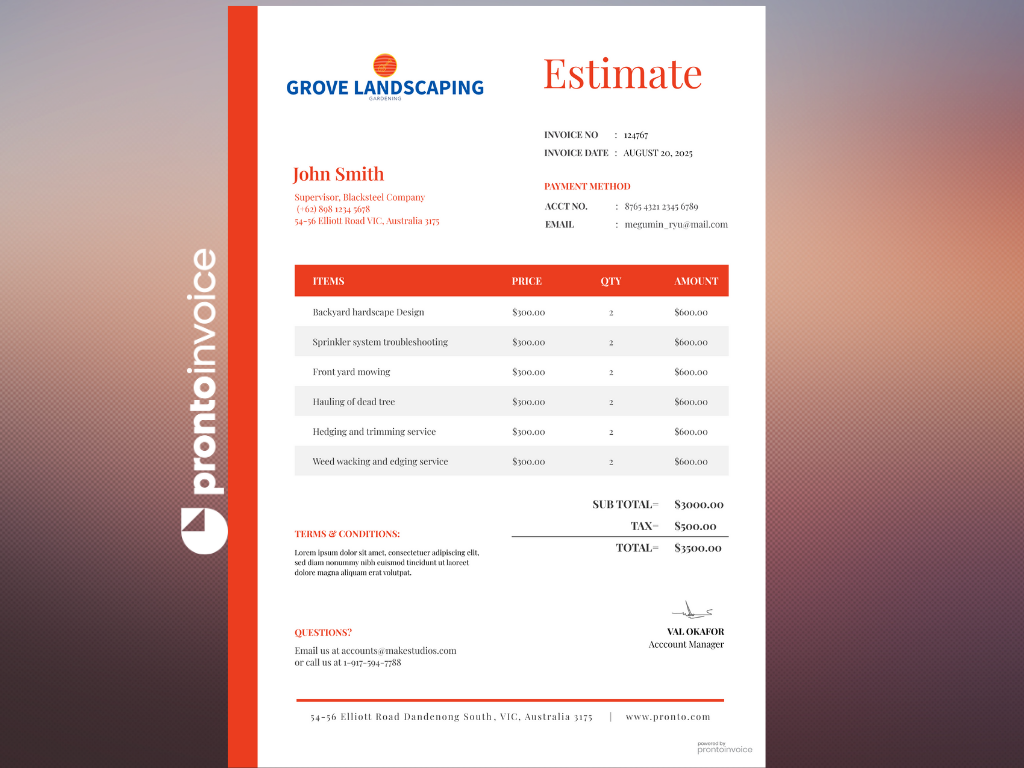
Every estimate contains the fields clients expect, plus flexible options for specific needs.
Standard Fields
- Your business name, logo, and contact information
- Client name and contact details
- Unique estimate number (EST-001, EST-002, etc.)
- Create date and expiration date
- Itemized list with descriptions, quantities, and prices
- Subtotal, tax, and total amount
- Payment method options
Optional Fields
- Project name – Associate the estimate with a specific job
- Message to client – Add context visible on the estimate
- Terms and conditions – Specify validity period, scope limitations
- Footer message – Custom text like “Thank you for considering us”
- Photos – Attach up to 4 images (job site photos, scope of work, etc.)
Line Items and Pricing
Add as many line items as needed. Each can be a product, service, or custom entry.
From Your Catalog
Select from saved items in your product/service library. Default pricing loads automatically, but you can override:
- Price per unit
- Quantity
- Description
- Taxable status
Custom Line Items
Create one-time entries without adding to your catalog. Optionally save them for future estimates.
Item Types
- Service – Hourly work, consultations, labor
- Product – Physical goods, materials, parts
- Other – Anything that doesn’t fit the above
Automatic Calculations
Totals update in real time as you add or modify items:
| Field | Description |
|---|---|
| Subtotal | Sum of all line item totals |
| Tax | Calculated based on your tax settings |
| Line item discounts | Per-item discounts if applied |
| Total discount | Discount applied to the estimate total |
| Shipping | If shipping is configured |
| Deposit requested | Upfront payment if required |
| Total | Final estimated amount |
All calculations update instantly—no refresh needed.
Estimate Customization
Tax
Configure tax at the company level, then override per estimate:
- Tax types: No tax, tax on total, tax on items only
- Tax rate: Set a default percentage (0-100%)
- Per-estimate override: Enable/disable tax or change rate
Discounts
Apply discounts at two levels:
- Line item discounts: Reduce the price of specific items
- Total discount: Percentage or fixed amount off the estimate total
Deposits
Request upfront payment before starting work:
- Set deposit as a percentage (e.g., 50%) or fixed amount
- Deposit amount shows clearly on the estimate
- Carries over when converting to invoice
Shipping
Add shipping details when estimates include physical products:
- Ship-to name, phone, email
- Full shipping address
- Shipping cost (itemized separately)
Estimate Status Tracking
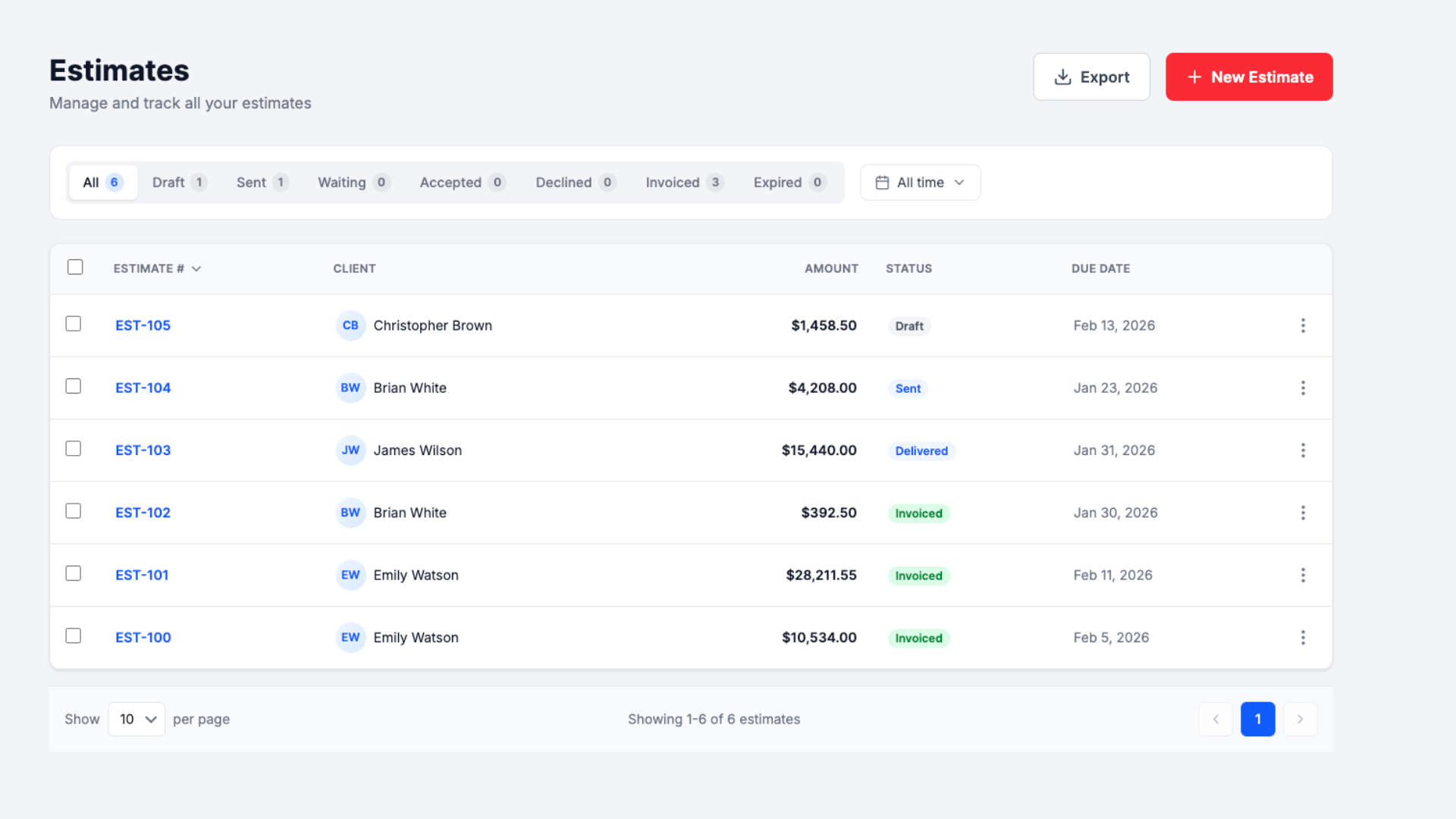
Every estimate has a status that updates as the client responds:
| Status | Meaning |
|---|---|
| Draft | Created but not yet sent |
| Sent | Delivered to client |
| Accepted | Client approved the estimate |
| Rejected | Client declined |
| Expired | Past the expiration date with no response |
Track all estimates from one screen with filters for each status.
Converting Estimates to Invoices
When a client accepts your estimate, convert it to an invoice with one tap. Everything transfers:
- Client information
- All line items with quantities and prices
- Tax settings
- Deposit amounts
- Project name and notes
- Payment method configuration
No re-entry. No copying. The invoice inherits everything from the estimate, ready to send or adjust as needed.
Who Estimates Are For
Contractors and Field Service
Create estimates on-site while discussing the job with the client. Walk through the property, note what’s needed, and hand them a professional PDF before you leave. No waiting until you’re back at the office.
Common uses:
- HVAC repair and installation quotes
- Plumbing job estimates
- Electrical work proposals
- Landscaping project bids
Freelancers and Creatives
Send detailed project proposals that clearly scope the work. Break down deliverables, set milestones, and establish payment terms upfront.
Common uses:
- Website design proposals
- Photography packages
- Consulting engagements
- Creative project scopes
Small Business Owners
Provide customers with formal quotes for products or services. Track which estimates are pending and follow up on those that haven’t responded.
Common uses:
- Custom product quotes
- Service packages
- Bulk order pricing
- Installation proposals
Managing Estimates
Estimate List
View all estimates with key details:
- Estimate number
- Client name
- Total amount
- Expiration date
- Status (draft, sent, accepted, rejected, expired)
- Project name
Filter by status or search by client name and estimate number.
Estimate Actions
- View – See full estimate details
- Edit – Modify items, dates, or settings
- Archive – Remove from active list without deleting
- Restore – Bring archived estimates back
- Delete – Permanently remove
- Convert – Turn accepted estimate into invoice
Bulk actions let you archive or restore multiple estimates at once.
Estimate Templates
Your estimates use professional templates based on your industry. Templates are configured at the company level—no selection needed when creating estimates.
What’s Customizable
- Industry styling – Template layouts optimized for your business type
- Color scheme – Primary color matching your brand
- Logo – Your business logo on every estimate
- Default terms – Standard validity period and conditions
Settings apply automatically to all new estimates.