
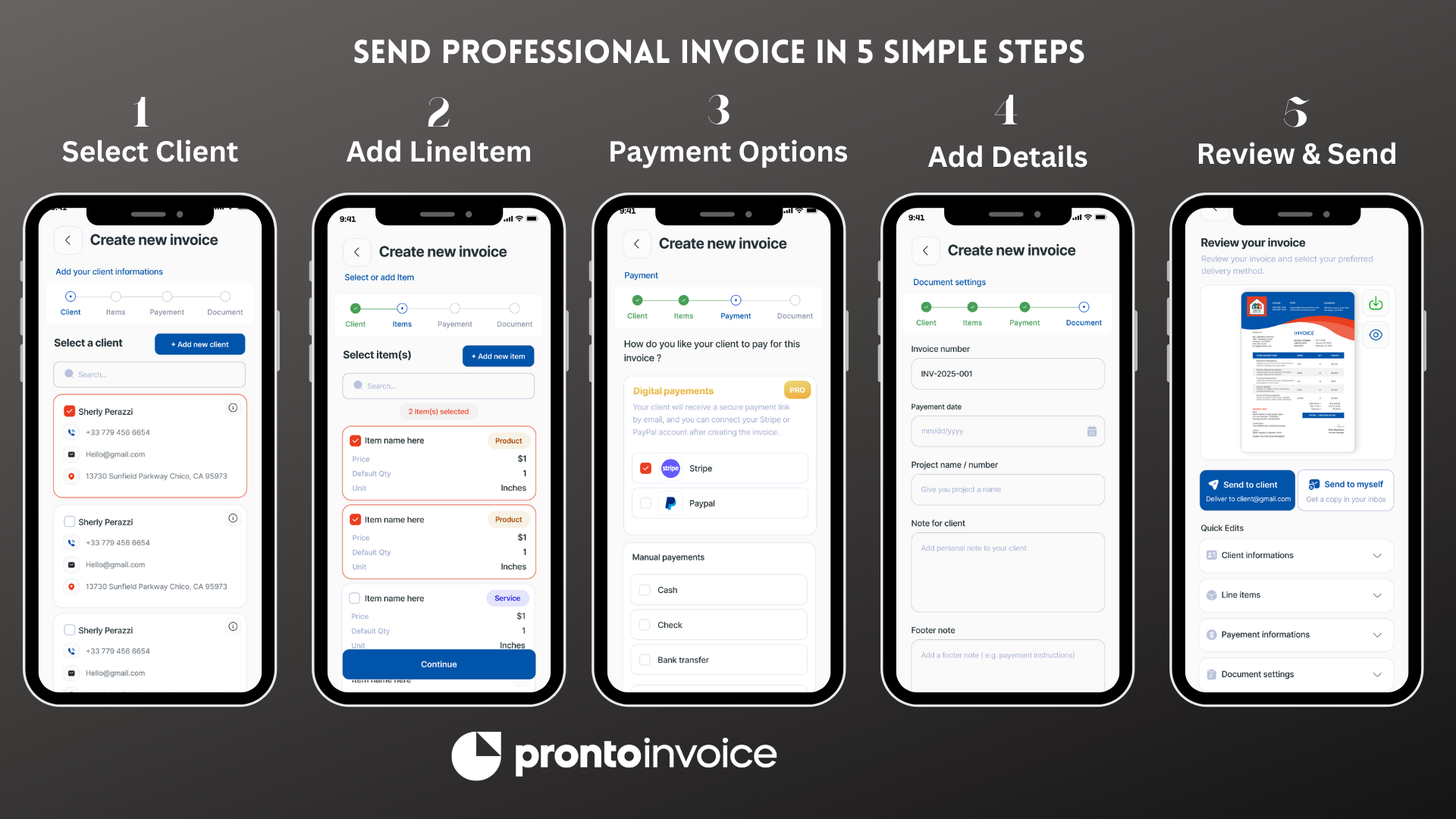
The 5-Step Invoice Workflow
Unlike competitors with overwhelming interfaces, Pronto Invoice reduces invoicing to exactly 5 steps. No menus to navigate, no settings to configure first—just a guided flow that gets you to “send” in under 60 seconds.
Step 1: Select Client
Choose from your saved clients or add a new one on the spot. The app searches your client list as you type and can import contacts directly from your phone.
Step 2: Select Items
Browse your saved products and services or create custom line items for one-off work. Each item includes:
- Name and description
- Unit price
- Quantity
- Unit type (hour, each, project, etc.)
- Taxable setting
You can save new items to your catalog for future invoices or add them as one-time entries. Review your selections, adjust quantities, edit prices, or remove items before proceeding.
Step 3: Payment Information
Choose which payment methods to accept for this invoice:
- Credit/debit cards via Stripe
- Bank transfer with your account details
- Check with payee information
- Venmo, Zelle, Cash App with your usernames
- Cash for in-person payment
- Custom payment instructions for anything else
At least one payment method must be enabled, or you can mark the invoice as already paid.
Step 4: Document Information
Set invoice metadata:
- Invoice number (auto-generated or custom)
- Invoice date and due date
- Project name
- Client note (appears on the invoice)
- Footer message
- Terms of service
Step 5: Review & Send
Preview your invoice as a PDF, then send via email directly from the app. You can also download, print, or share.
What You Can Include on an Invoice
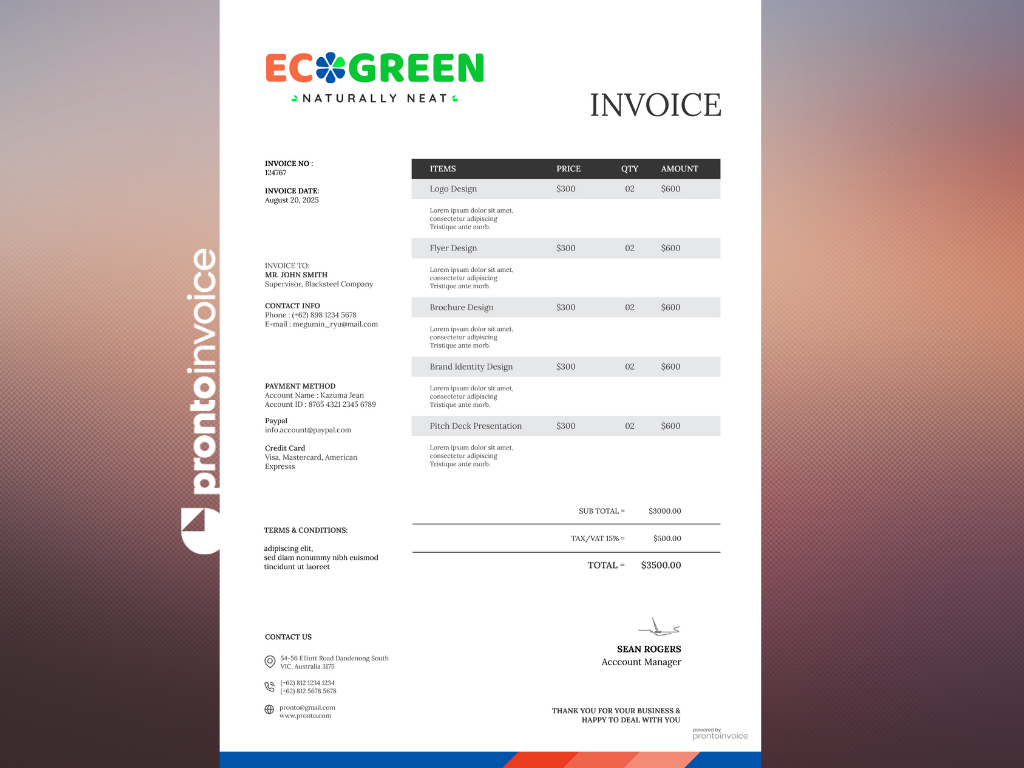
Every invoice contains standard fields that clients expect, plus flexible options for your specific needs.
Standard Invoice Fields
- Your business name, logo, and contact information
- Client name and contact details
- Unique invoice number
- Invoice date and due date
- Itemized list with descriptions, quantities, and prices
- Subtotal, tax, and total amount
- Payment instructions
Optional Fields
- Project name – Associate the invoice with a specific job or project
- Client note – Add context or instructions visible on the invoice
- Footer message – Include “Thank you for your business” or custom text
- Terms of service – Specify payment terms like “Net 30”
- Photos – Attach up to 4 images (job site photos, work completed, etc.)
Line Items and Pricing
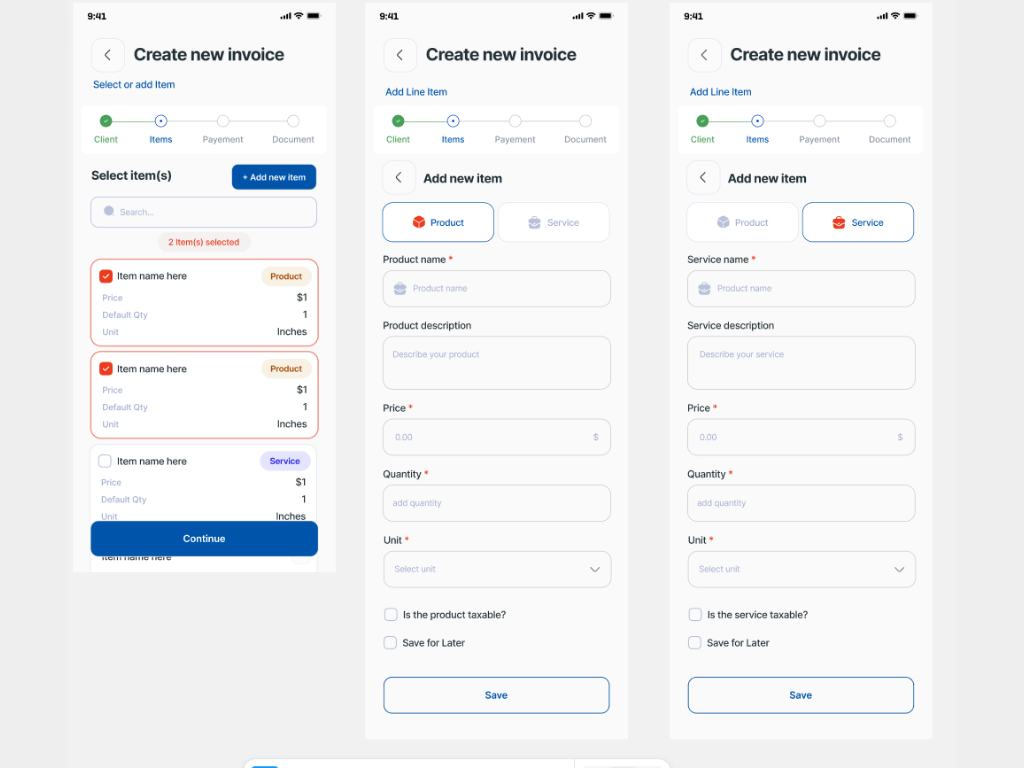
Add as many line items as needed. Each can be a product, service, or custom entry.
From Your Catalog
Select from saved items in your product/service library. Default pricing loads automatically, but you can override:
- Price per unit
- Quantity
- Description
- Taxable status
Custom Line Items
Create one-time entries without adding to your catalog. Optionally save them for future use.
Item Types
- Service – Hourly work, consultations, labor
- Product – Physical goods, materials, parts
- Other – Anything that doesn’t fit the above
Automatic Calculations
Pronto Invoice calculates totals in real time as you add or modify items. The transaction summary shows:
| Field | Description |
|---|---|
| Subtotal | Sum of all line item totals |
| Tax | Calculated based on your tax settings |
| Line item discounts | Per-item discounts if applied |
| Total discount | Discount applied to the invoice total |
| Shipping | If shipping is configured |
| Deposit requested | Partial payment amount if set |
| Total | Final amount due |
| Amount paid | Payments received |
| Balance | Remaining amount owed |
All calculations update instantly—no refresh needed.
Invoice Customization
Tax
Configure tax at the company level, then override per invoice if needed:
- Tax types: No tax, tax on total, tax on items only, or deductible
- Tax rate: Set a default percentage (0-100%)
- Per-invoice override: Enable/disable tax or change the rate for specific invoices
Discounts
Apply discounts at two levels:
- Line item discounts: Reduce the price of specific items
- Total discount: Percentage or fixed amount off the invoice total
Discounts can be saved and reused or created as one-time entries.
Deposits
Request upfront payment before completing work:
- Set deposit as a percentage (e.g., 50%) or fixed amount
- Deposit amount shows clearly on the invoice
- Balance updates automatically when deposit is paid
Shipping
Add shipping details when sending physical products:
- Ship-to name, phone, email
- Full shipping address
- Shipping cost (itemized separately)
- Shipping label
Invoice Templates
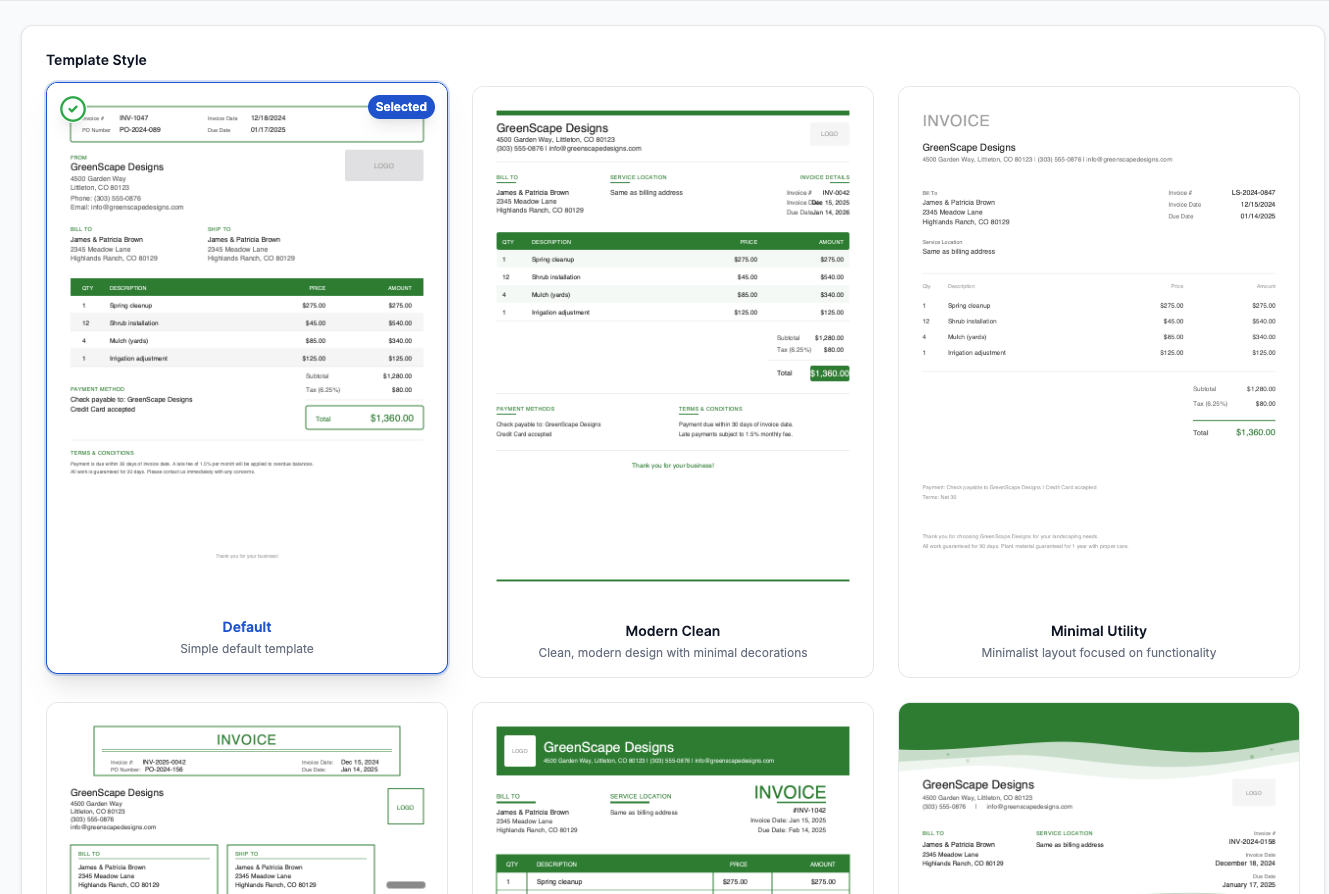
Your invoices use professional templates based on your industry. Templates are configured at the company level—no selection needed during invoice creation.
What’s Customizable
- Industry styling – Template layouts optimized for your business type
- Color scheme – Primary color that matches your brand
- Logo – Your business logo positioned on the invoice
- Footer and terms – Default text for every invoice
Template preferences are set once in your company settings and apply to all new invoices automatically.
Sending Invoices
Once your invoice is complete, send it directly from the app.
Delivery Options
- Email – Send to the client’s email address on file
- Download PDF – Save to your device for manual delivery
- Print – Generate a printable version
What Clients Receive
Clients get a professional PDF invoice with all your configured details, a clear payment amount, and instructions for how to pay.
Managing Invoices
After creation, track and manage all invoices from one place.
Invoice List
View all invoices with key details:
- Invoice number
- Client name
- Total amount
- Amount paid
- Due date
- Status (draft, sent, paid, overdue)
- Project name
Filter by date range or status. Search by client name or invoice number.
Invoice Actions
- View – See full invoice details
- Edit – Modify items, dates, or settings
- Archive – Remove from active list without deleting
- Restore – Bring archived invoices back
- Delete – Permanently remove
Bulk actions let you archive or restore multiple invoices at once.