
The Problem with Manual Item Entry
Every time you type a product name, description, or price from scratch, you waste time and risk inconsistency. Typing “Consultation - 1 hour” on one invoice and “Hourly Consultation” on another looks unprofessional. Forgetting your standard rate and undercharging costs you money.
Most invoicing apps treat line items as throwaway data—you enter them once and they’re gone. Pronto Invoice treats your products and services as reusable assets. Enter them once with all the details, then select them instantly whenever you create an invoice.
How the Item Library Works
Creating Items
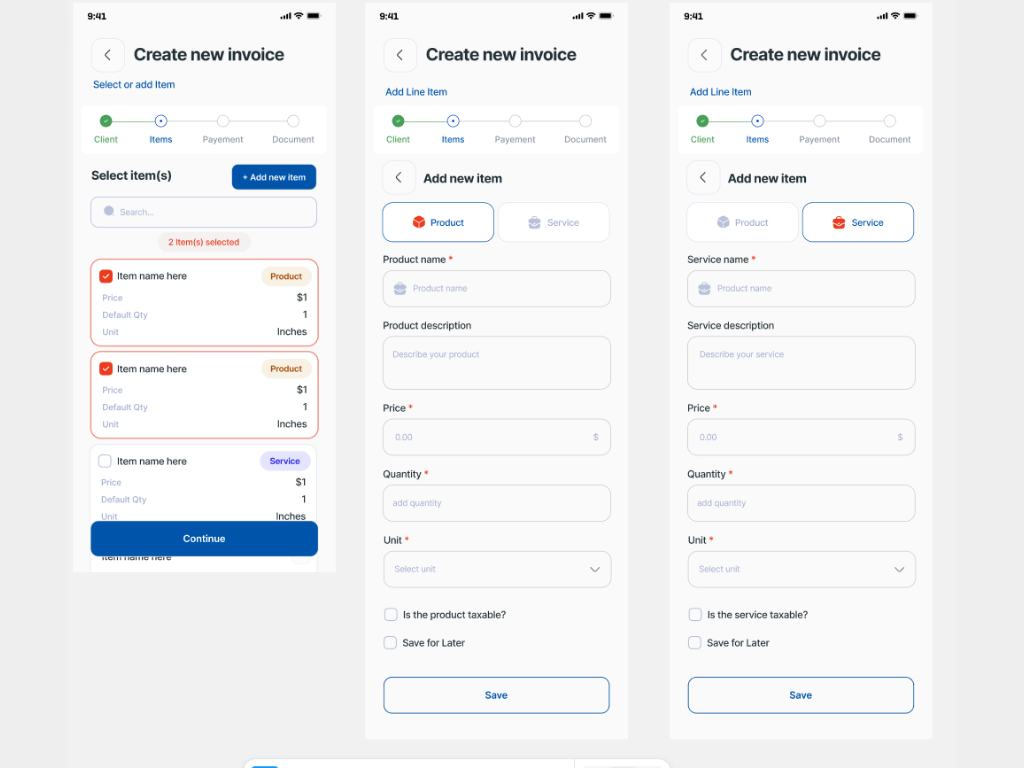
Add products and services to your library with these fields:
| Field | Required | Description |
|---|---|---|
| Name | Yes | Display name (3-150 characters) |
| Price | Yes | Default price per unit |
| Quantity | Yes | Default quantity when added to invoice |
| Unit | Yes | Unit of measurement (hour, each, project, etc.) |
| Item Type | Yes | Product or Service |
| Description | No | Detailed description (up to 2,000 characters) |
| Taxable | No | Whether tax applies to this item |
| Photo | No | Product image for visual identification |
Item Types
Organize your catalog by type:
- Service – Hourly work, consultations, labor, professional services
- Product – Physical goods, materials, parts, supplies
This distinction helps you browse and filter your catalog during invoice creation.
Using Items on Invoices
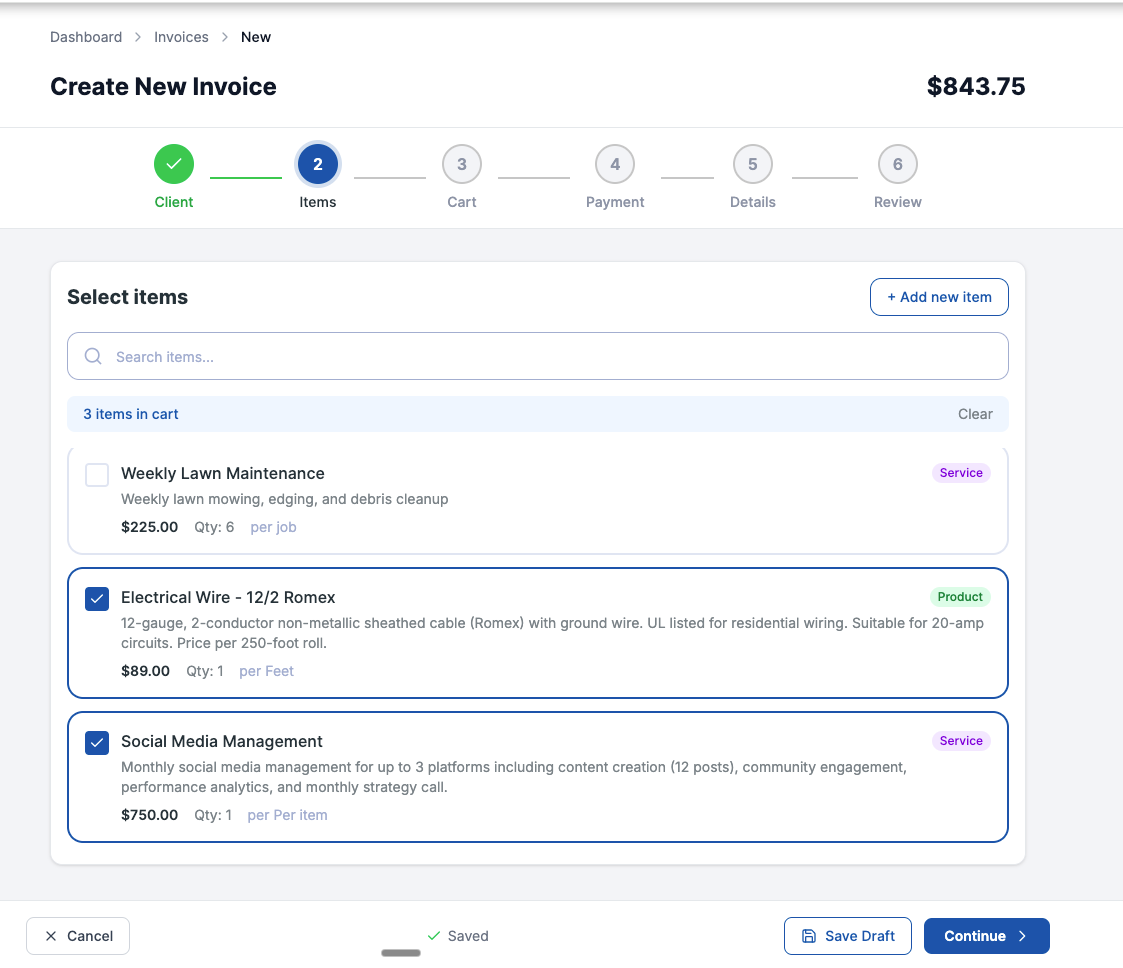
During invoice creation (Step 2: Select Items), your entire library is available:
- Browse – Scroll through your saved items
- Search – Find items by name or description
- Select – Tap to add an item to the invoice
When you select an item, all saved details populate automatically:
- Name and description
- Price and quantity
- Unit of measurement
- Tax setting
Override Defaults
Default values are starting points, not constraints. When adding an item to an invoice, you can adjust:
- Price – Change for this invoice only
- Quantity – Set the actual amount
- Description – Customize for this job
- Taxable status – Override the default
Changes on invoices don’t affect the library item—your defaults remain intact for future use.
Product Photos
Add photos to items for visual identification. This is especially useful when:
- You sell multiple similar products
- Team members need to identify items quickly
- You want to verify you’re selecting the correct item
Photo Specifications
- Formats: JPEG, PNG, JPG, GIF, WebP
- Max size: 5MB (automatically compressed)
- Display size: Optimized to 800x800 pixels
Managing Photos
- Upload – Add a photo from your device camera or gallery
- Replace – Upload a new photo to replace the existing one
- Delete – Remove the photo entirely
Photos sync across all your devices automatically.
Item Fields Explained
Name (Required)
The display name shown on invoices. Keep it clear and professional:
- ✅ “Website Design - Basic Package”
- ✅ “Plumbing Service - Hourly Rate”
- ❌ “web design thing”
- ❌ “Service 1”
Names must be 3-150 characters.
Price (Required)
The default price per unit. Enter the dollar amount you typically charge:
- Hourly service at $150/hour → Price: 150.00
- Product that costs $24.99 → Price: 24.99
Price must be greater than zero.
Quantity (Required)
The default quantity when added to invoices. For most items, this is 1.
Examples:
- Hourly service → Quantity: 1 (adjust hours on each invoice)
- Pack of 10 widgets → Quantity: 1 (the pack is the unit)
Unit (Required)
Describes what the quantity represents:
- hour – Hourly services
- each – Individual items
- project – Flat-rate projects
- day – Daily rates
- month – Monthly retainers
- sq ft – Area-based pricing
- lb – Weight-based pricing
Use any unit that makes sense for your business.
Description (Optional)
Additional details that appear on invoices. Use this for:
- Scope of work
- What’s included
- Terms or conditions
- Specifications
Up to 2,000 characters. Leave blank if the name is self-explanatory.
Taxable (Optional)
Whether tax is calculated on this item. Defaults to non-taxable.
Set to taxable for items that require sales tax collection in your jurisdiction.
Managing Your Library
Viewing Items
See all your items in a paginated list showing:
- Item name
- Price
- Unit
- Item type (product/service)
- Photo (if uploaded)
Editing Items
Update any item field at any time:
- Full update – Replace all information
- Partial update – Change only specific fields
Changes apply to future invoices. Existing invoices retain their original values.
Deleting Items
Permanently remove items you no longer offer. When you delete an item:
- It’s removed from your library immediately
- Existing invoices are not affected
- Associated photos are automatically cleaned up
Note: Deletion cannot be undone. If you might need the item later, consider keeping it with a modified name like “Discontinued - Widget X”.
Custom Line Items
You don’t have to save everything to your library. During invoice creation, you can:
- Add a custom line item for one-time entries
- Optionally save to library for future use
This gives you flexibility—save items you’ll reuse, skip the library for truly one-off charges.
Who This Feature Is For
Contractors and Field Service
Save your standard services with accurate pricing:
- “Service Call - First Hour”
- “Service Call - Additional Hours”
- “Emergency Rate - After Hours”
- “Parts Markup - Standard”
Select the right item on every job site. No more forgetting your emergency rate or undercharging for after-hours work.
Freelancers
Build a professional service menu:
- “Consultation - Discovery Call”
- “Design - Logo Package”
- “Development - Hourly Rate”
- “Rush Fee - 24hr Turnaround”
Add consistent descriptions that set client expectations. Your pricing stays consistent across all projects.
Small Business Owners
Catalog your entire product line:
- Products with photos for easy identification
- Services with detailed scope descriptions
- Materials with accurate per-unit pricing
Team members can create invoices using approved items without guessing at prices or descriptions.