
The Problem with Form-Based Invoicing
Traditional invoicing apps force you through a rigid sequence: open a form, scroll to find the client field, type and search, select from results, navigate to items, search again, enter quantities, scroll down for payment terms, and so on. On a phone screen, this means:
- Dozens of taps just to create a simple invoice
- Constant scrolling through fields you may not need
- Repeated searches for clients and items you use every week
- Context switching between keyboard and selection interfaces
- Mental overhead remembering where settings live
For field service professionals finishing a job, freelancers between client meetings, or anyone invoicing from their phone, form-based interfaces create unnecessary friction. You know what you want to invoice. You just need a faster way to express it.
Smart AI Assistance lets you skip the form navigation entirely. Describe what you need in plain language, and the AI builds the invoice for you. For a deeper look at how AI is changing invoicing, see our AI invoice assistants guide.
How Smart AI Assistance Works
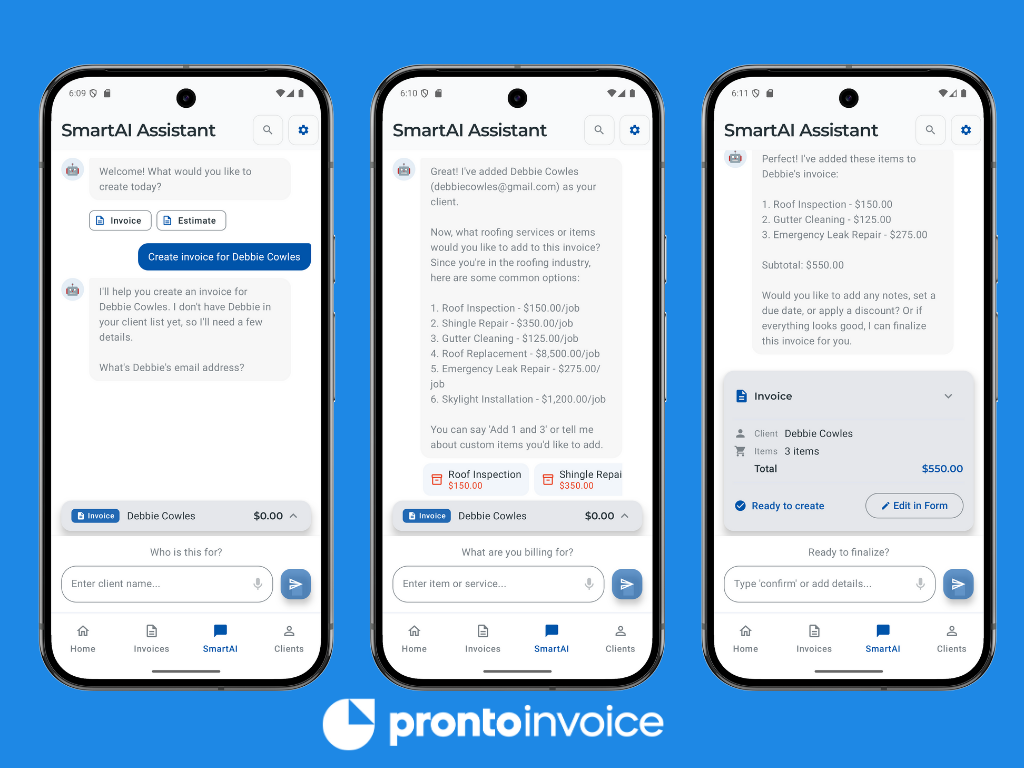
Smart AI Assistance uses conversational invoicing to replace form navigation with natural language. Instead of tapping through screens, you describe what you need and the AI assembles the invoice.
The Conversation Flow
Step 1: Choose Document Type
When you open Smart AI, it asks whether you want to create an invoice or estimate. Tap your choice or type it.
Step 2: Select Your Industry (first time only)
The AI asks about your industry to provide relevant suggestions. This choice persists across sessions. Supported industries include plumbing, electrical, HVAC, photography, web design, consulting, landscaping, cleaning services, auto mechanics, construction, personal training, legal services, accounting, catering, beauty and salon services, and general.
Step 3: Identify the Client
Tell the AI who the invoice is for. Type a name, and the AI searches your existing clients using fuzzy matching. “Invoice for John” finds “John Smith” in your client list. If the client is new, provide their email or phone number and the AI creates the client record automatically.
Step 4: Add Line Items
Describe the work performed or items sold. The AI matches your description against your item library and suggests relevant entries. For new users without saved items, the AI offers industry-specific sample items to get started quickly.
Step 5: Review and Confirm
The AI shows a preview of the complete invoice with all details. Confirm to create the invoice, or request changes conversationally. You can also switch to the traditional form interface at any point if you prefer.
Detailed Capabilities
Natural Language Input
Type requests in your own words. The AI understands variations like:
- “Create invoice for ABC Corp, $1500 consulting”
- “Bill John Smith for roof repair, 500 dollars”
- “New invoice - Sarah Chen - website design - three thousand”
- “Invoice Mike for 3 hours electrical work at $85/hour”
No specific syntax required. The AI extracts client names, amounts, descriptions, and quantities from natural language.
Intelligent Client Matching
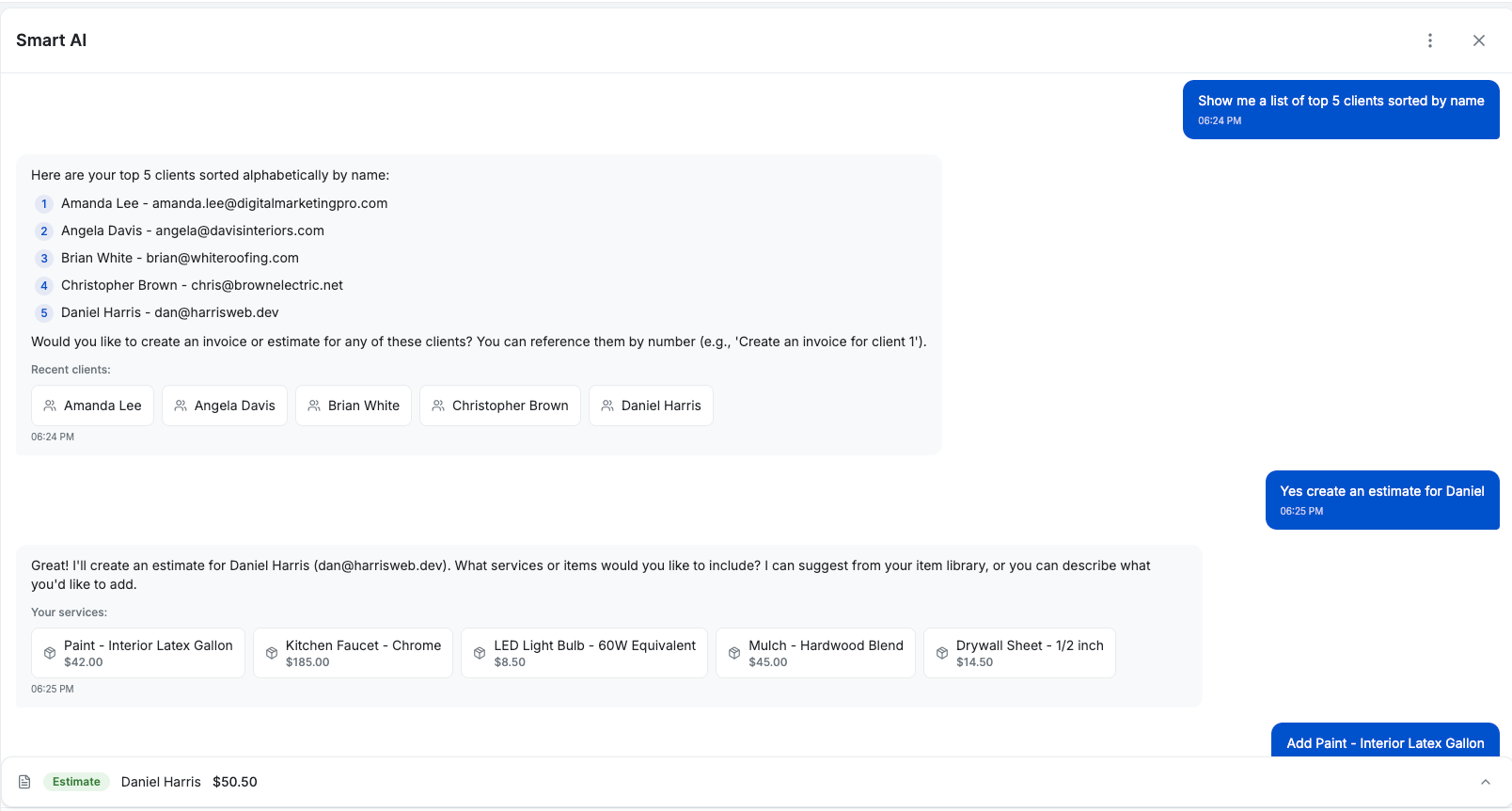
The AI searches your client list using fuzzy matching. Partial names, nicknames, and minor typos still find the right client:
- “John” matches “John Smith” and “John Doe” (shows options if ambiguous)
- “ABC” matches “ABC Corporation”
- “Sarah” matches “Sarah Chen” from your contacts
When multiple clients match, the AI shows options and asks you to clarify. For completely new clients, provide contact information and the AI creates the record.
Smart Item Suggestions
Based on the client and your description, the AI suggests relevant items from your library:
- Mention “plumbing” and see your saved plumbing services
- Invoice a repeat client and see items from their previous invoices
- Describe “3 hours of work” and the AI applies your hourly rate
You can accept suggestions, modify them, or enter completely custom items.
Industry Sample Items
New users without saved items see industry-specific samples based on their selected industry. These are common services with typical pricing:
| Industry | Sample Items |
|---|---|
| Plumbing | Drain cleaning, pipe repair, water heater installation, faucet replacement, emergency service call |
| Electrical | Outlet installation, panel upgrade, lighting installation, wiring repair, inspection |
| Photography | Portrait session, event coverage, photo editing, prints package, travel fee |
| HVAC | AC tune-up, furnace repair, duct cleaning, thermostat installation, emergency service |
| Web Design | Website design, landing page, logo design, monthly maintenance, SEO setup |
| Consulting | Strategy session, hourly consultation, project retainer, workshop, report |
Select sample items to add them to both the current invoice and your item library for future use.
Smart Defaults
The AI applies sensible defaults based on your settings and industry:
- Payment terms from your company preferences
- Due dates calculated from your default terms
- Tax settings from your company configuration
- Industry-specific terms appropriate for your business type
Override any default conversationally: “Make it due in 15 days” or “No tax on this one.”
Multi-Turn Conversations
Complex invoices may require back-and-forth dialogue. The AI remembers context throughout the conversation:
You: “Invoice for Smith Construction” AI: “Found Smith Construction. What services are you billing for?” You: “Two days of electrical work” AI: “At your standard rate of $450/day, that’s $900. Anything else?” You: “Add materials, $340” AI: “Added $340 for materials. Total is $1,240. Ready to create?”
Continue adding items, adjusting details, or asking questions until the invoice is complete.
Industry-Specific Intelligence
When you select your industry, Smart AI Assistance customizes the experience in several ways.
Tailored Sample Items
Each industry has curated sample items with typical pricing. These are not generic placeholders but real services and products that professionals in that industry commonly bill for. Plumbers see drain cleaning and pipe repair. Photographers see session fees and editing packages. Consultants see hourly rates and retainer options.
Appropriate Default Terms
Payment terms vary by industry. Contractors may need deposit structures. Consultants often use Net 30. Service businesses may expect immediate payment. The AI suggests terms typical for your industry while allowing customization.
Relevant Language
The AI uses terminology appropriate to your industry. It asks about “services” for service businesses, “items” for retail, “deliverables” for consultants, and “work completed” for contractors.
Supported Industries
Smart AI Assistance includes built-in support for 16 industries:
- Construction / Contractors - Labor, materials, permits, demolition, finishing
- Plumbing - Drain cleaning, pipe repair, installations, emergency calls
- Electrical - Wiring, panel work, lighting, inspections
- HVAC - Heating and cooling service, duct work, installations
- Auto Mechanics - Oil changes, brake service, diagnostics, repairs
- Photography - Sessions, event coverage, editing, prints
- Web Design / Creative - Design work, development, maintenance
- Consulting - Strategy, hourly consulting, retainers, workshops
- Landscaping - Lawn care, tree service, irrigation, design
- Cleaning Services - Standard cleaning, deep cleaning, specialized services
- Personal Training / Fitness - Sessions, packages, assessments
- Legal Services - Consultations, document preparation, representation
- Accounting / Bookkeeping - Tax prep, monthly bookkeeping, audits
- Catering / Food Services - Events, per-person pricing, setup fees
- Beauty / Salon Services - Cuts, color, treatments, products
- General / Other - Flexible templates for any business type
Who Smart AI Assistance Is For
Field Service Professionals
Plumbers, electricians, HVAC technicians, and contractors finish jobs and need to invoice immediately. Standing in a customer’s driveway is not the time to navigate through forms on a small screen.
With Smart AI:
- Create invoices in under 15 seconds with voice or text
- Skip form navigation while hands are dirty or gloved
- Get industry-specific item suggestions relevant to your trade
- Match repeat customers instantly from partial names
- Invoice before you leave the job site
Mobile-First Users
If your phone is your primary business tool, form-based invoicing means constant scrolling and tapping on a small screen. Conversational invoicing feels natural on mobile.
With Smart AI:
- Type a single sentence instead of navigating five screens
- Use the same messaging interface you use for everything else
- Work faster on smaller screens where forms are tedious
- Reduce data entry errors from small tap targets
High-Volume Invoicers
Creating multiple invoices daily makes every second of friction compound. Shaving 45 seconds off each invoice saves significant time over a week.
With Smart AI:
- Repeat common invoices with minimal typing
- Leverage suggestions based on your patterns
- Batch through invoices faster than any form interface
- Reduce cognitive load on repetitive tasks
Tech-Cautious Users
Some users find traditional software interfaces intimidating. Nested menus, configuration options, and form validation errors create anxiety.
With Smart AI:
- Describe what you want in plain language
- Get guided through any missing information conversationally
- Never see a validation error - the AI asks for what it needs
- Learn the app naturally through conversation
Power Users
Experienced users who know exactly what they want do not need guided form wizards. They want the fastest path from intent to invoice.
With Smart AI:
- Bypass all form screens with a single message
- Create complete invoices in one sentence for known clients and items
- Use shortcuts like “same as last invoice for John”
- Achieve sub-15-second invoice creation for repeat scenarios
Seamless Fallback to Traditional Forms
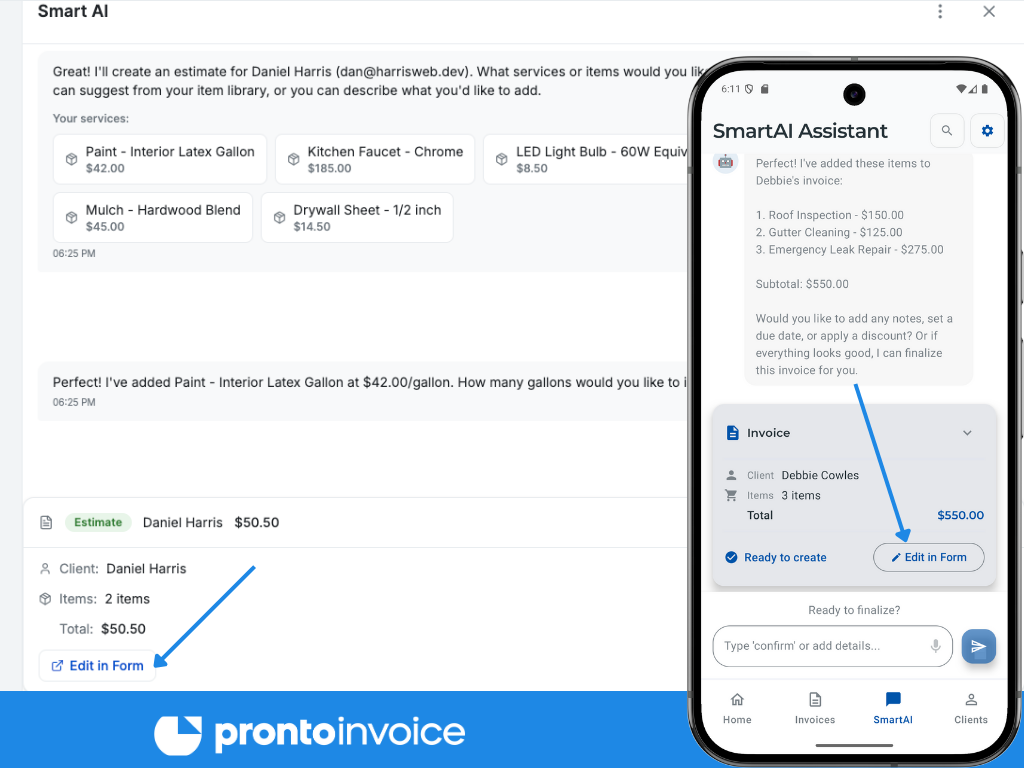
Smart AI Assistance produces the same invoice data as the traditional 5-step workflow. At any point during a conversation, you can switch to the form interface:
- Tap “Edit in Form” on the invoice preview card
- The 5-step flow opens with all AI-entered data pre-filled
- Continue editing with full access to every field and option
- Your conversation progress is not lost
This works in both directions. Start in the form, realize you want to describe something complex, and switch to Smart AI. The feature complements the existing workflow rather than replacing it.
When to Use Which
Use Smart AI when:
- You know what you want to invoice
- Creating simple to moderately complex invoices
- Working from mobile with limited time
- Invoicing repeat clients with familiar services
Use Traditional Forms when:
- You need to browse all available options
- Configuring complex discounts or shipping details
- Making precise adjustments to multiple fields
- You prefer visual form interfaces
Managing Smart AI Assistance
Accessing the Feature
Smart AI Assistance is available from the main navigation. Tap the AI assistant icon or navigate to the Smart AI tab to start a conversation. The feature is available on both iOS and Android.
Conversation History
Previous conversations are saved and accessible. Review past invoices created through Smart AI, see the conversation that created them, and reference details from prior sessions.
Industry Settings
Your industry selection persists across sessions. Change it anytime in your company settings if your business focus shifts.
Item Library Integration
Items suggested by Smart AI and items you create during conversations are saved to your item library. Over time, your library grows to include everything you commonly invoice for, making future conversations even faster.
New User Onboarding
First-time users without company information configured are guided through basic setup before invoice creation:
- Company or business name
- Business email address
- Phone number (optional)
- Business address (optional)
This takes about 30 seconds and only happens once. After setup, Smart AI proceeds directly to invoice creation.
Offline Behavior
Smart AI Assistance requires an internet connection to function. When offline, the feature shows a clear message explaining that connectivity is required. The traditional form-based interface remains fully functional offline.